Gaussian Splatting in Unity
This guide shows how to load Gaussian Splatting models from Splatware into Unity using the UnityGaussianSplatting package by Aras Pranckevičius.
You’ll download a .ply model from Splatware, set up a Unity sample project, and create a reusable GaussianSplat asset that renders in real time.
Requirements
- A trained Splatware project that you can export as
.PLY. - Unity from 2022.3 onwards (or newer LTS versions).
- The open-source UnityGaussianSplatting project from GitHub.
- A GPU and platform that support D3D12, Vulkan or Metal (DX11/OpenGL are not supported).
Setting Up Unity
1. Download your PLY from Splatware
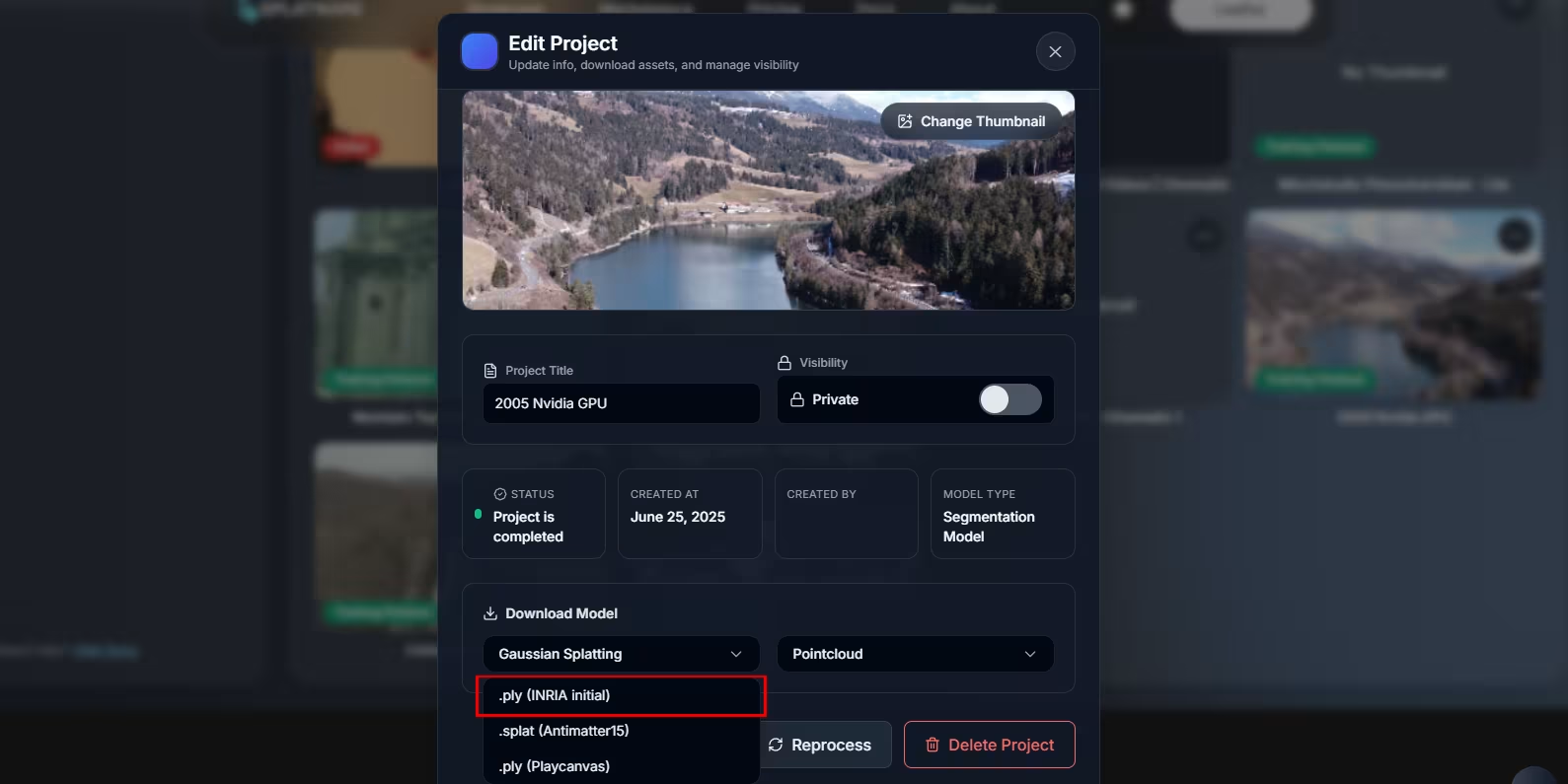
On the /create page, open your finished project and export it as PLY. This gives you a local .ply file compatible with the UnityGaussianSplatting importer.
2. Install Unity
Install Unity using Unity Hub. The sample projects in UnityGaussianSplatting are built around the 2022.3 stream, but newer versions typically work as well.
Download Unity →Note: The sample scenes require DX12 or Vulkan on Windows. DX11 is not supported.
Installing UnityGaussianSplatting
1. Download the project
The Unity integration is provided by the open-source UnityGaussianSplatting repository:
Open UnityGaussianSplatting Releases →Download the latest release ZIP and unzip it. You will get several folders, including:
docs/– additional documentationpackage/– UPM packageprojects/– sample Unity projects
2. Choose a sample project
Inside the projects/ folder you will find three ready-to-use Unity projects:
| Project | Pipeline | Use Case |
|---|---|---|
| GaussianExample | Built-in Render Pipeline | Simplest starting point. |
| GaussianExample-HDRP | High Definition Render Pipeline | High-end lighting & cinematic scenes. |
| GaussianExample-URP | Universal Render Pipeline | Flexible, cross-platform rendering. |
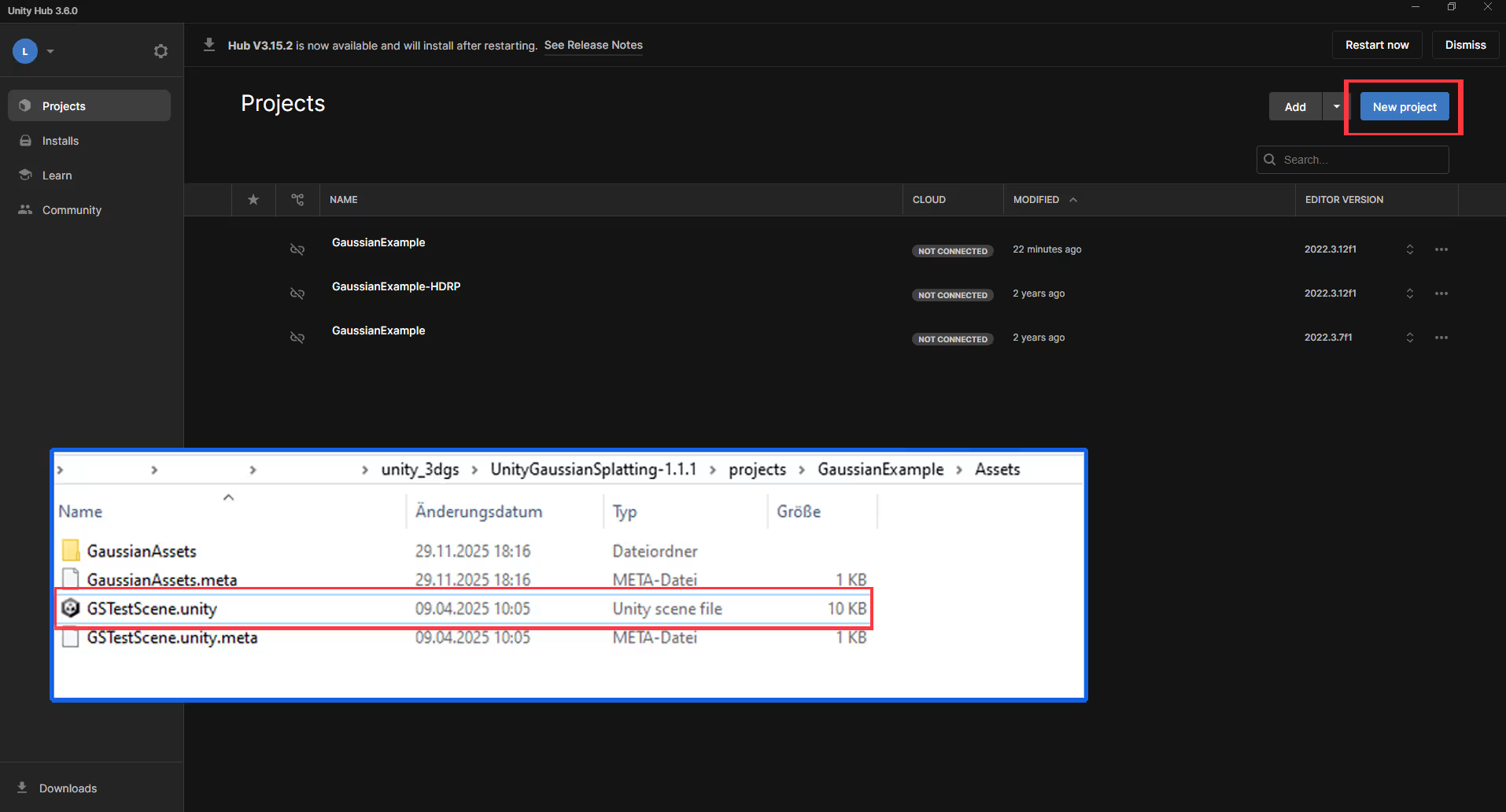
You can open a project in two ways:
- Use Unity Hub "Add project from disk" and point it to e.g.
projects/GaussianExample, or - Open the scene file directly by double-clicking
projects/GaussianExample/Assets/GSTestScene.unity– this also launches Unity.
Creating a Gaussian Splat Asset
Once the sample project is open in Unity, you can convert your .ply file into a native GaussianSplat asset.
- Open the Unity editor with GSTestScene (or your own scene) loaded.
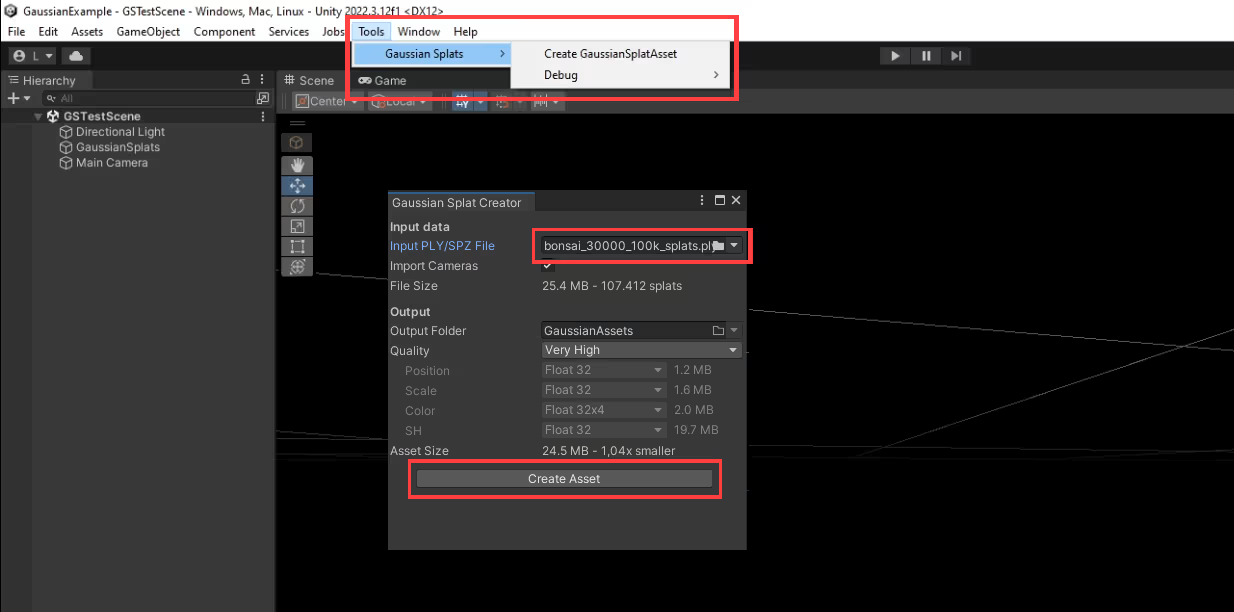
- In the top menu bar, go to Tools → Gaussian Splats → Create Gaussian Splat Asset.
- In the popup window, set Input PLY/SPZ File to the
.plydownloaded from Splatware. - Choose a Quality preset. For Splatware models, Very High is recommended initially.
- Pick an output folder (by default, assets are created under
Assets/GaussianAssets). - Click Create Asset.
The importer supports:
- Original 3D Gaussian Splatting PLY format from the paper.
- SPZ format from Scaniverse.
- Optional camera metadata via a
cameras.jsonfile next to the input.
Even at "Very Low" quality, compression remains surprisingly usable and dramatically reduces size.
Assigning the Asset in a Scene
After the asset is created, you need to attach it to a GaussianSplatRenderer in the scene.
- In the Hierarchy, select the game object that has the
GaussianSplatRendererscript (in the sample scene, this is usually named something like GaussianSplats). - In the Inspector, find the Asset field on the GaussianSplatRenderer component.
- Drag your newly created GaussianSplat asset from
Assets/GaussianAssets/into this field. - Press Play — the Gaussian Splat scene should render in the Game view.
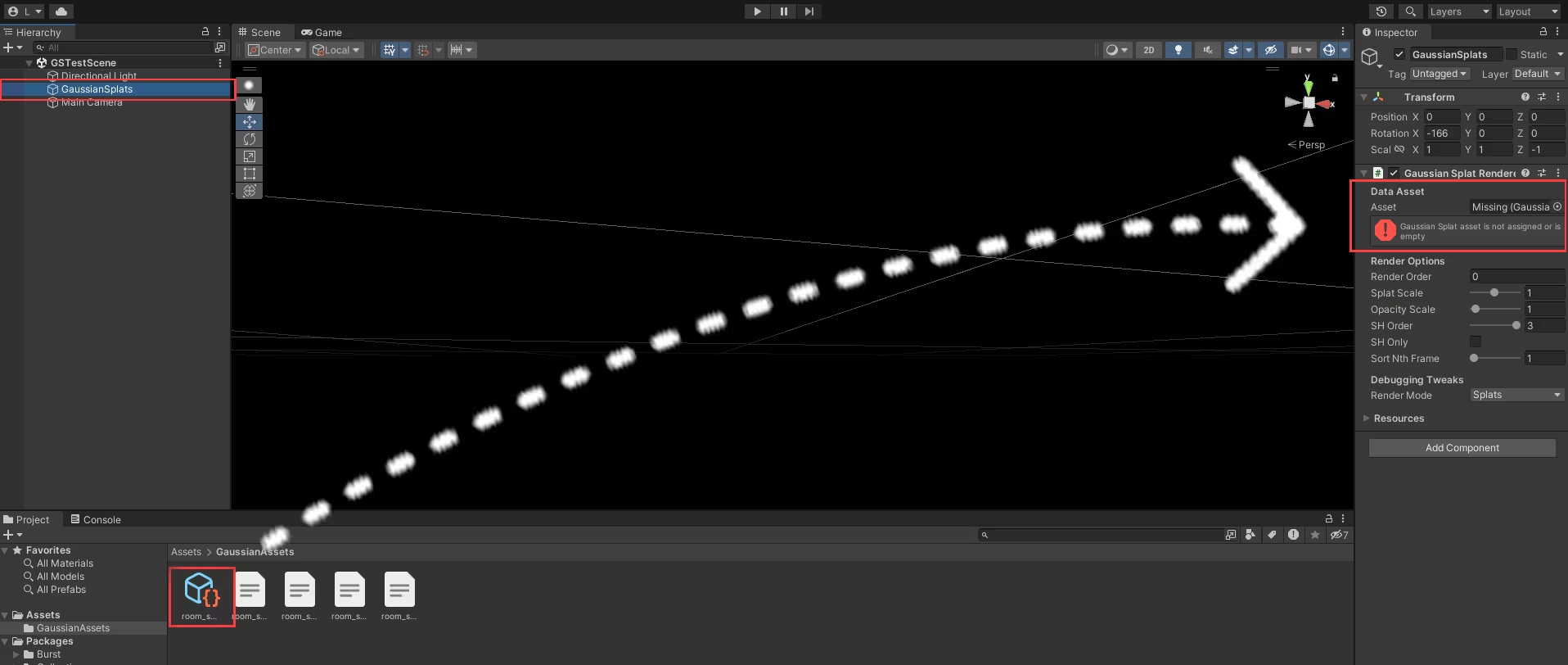
The object transform (position, rotation, scale) is applied to the whole splat scene, so you can move or rotate it like any other Unity object.
UnityGaussianSplatting Capabilities
The UnityGaussianSplatting project is a feature-rich playground for real-time Gaussian Splat rendering in Unity.
| Capability | Description |
|---|---|
| Real-time rendering | High performance splat rendering using compute shaders and GPU sorting, based on the original 3DGS paper. |
| Multiple pipelines | Supports Built-in, URP and HDRP via separate example projects and integration docs. |
| Compression options | Several quality presets from Very Low to Very High, trading size vs. detail. |
| Camera integration | Optional cameras.json support and tools for previewing reference camera paths. |
| VR support (partial) | Some desktop VR headsets are reported to work (e.g. certain PC VR devices), but mobile/standalone support is mixed. |
| Performance tooling | Sample scenes include debug visualizations, counters and performance comparison setups. |
The author notes that this is a "toy" viewer and not actively developed for production features, but it is very capable for experimentation, demos and research.
Platform Support & Limitations
- Known to work on:
- Windows (D3D12 or Vulkan)
- macOS (Metal)
- Linux (Vulkan)
- DX11, OpenGL and OpenGL ES are not supported.
- WebGPU is not yet viable in current builds.
- Mobile platforms (iOS / Android) are hit-or-miss and often unsupported.
- Some VR headsets work; others may have issues depending on the runtime.
For up-to-date details, always check the repository issues and README.
Licensing Notes & Resources
UnityGaussianSplatting License
The UnityGaussianSplatting repository itself is licensed under the MIT license, which allows free use, modification and redistribution.
Source of Your PLY Files
While the Unity viewer code is MIT, you must still respect the licensing and terms of the models and training pipelines you use:
- Gaussian Splat files generated by Splatware are subject to Splatware’s terms of use.
- Original research implementations and datasets may have additional commercial restrictions (e.g. some INRIA licenses).
For more details and technical write-ups, see:
- UnityGaussianSplatting on GitHub
- Developer blog posts on compression and performance tuning linked from the repository README.